
General settings
The Settings panel in the dashboard allows you to configure a range of global display and behavior options, including:- Choosing between a top-row filter layout or a sidebar filter layout
- Setting the number of products per row on desktop and mobile
- Selecting a pagination style (e.g., standard pagination, “Load More,” infinite scroll, etc.)
- Defining the number of products loaded per page
- Adjusting text alignment across product cards and listings
- Controlling redirection behavior (link directly to a product page or to a collection alias)
- …and many other customization settings.
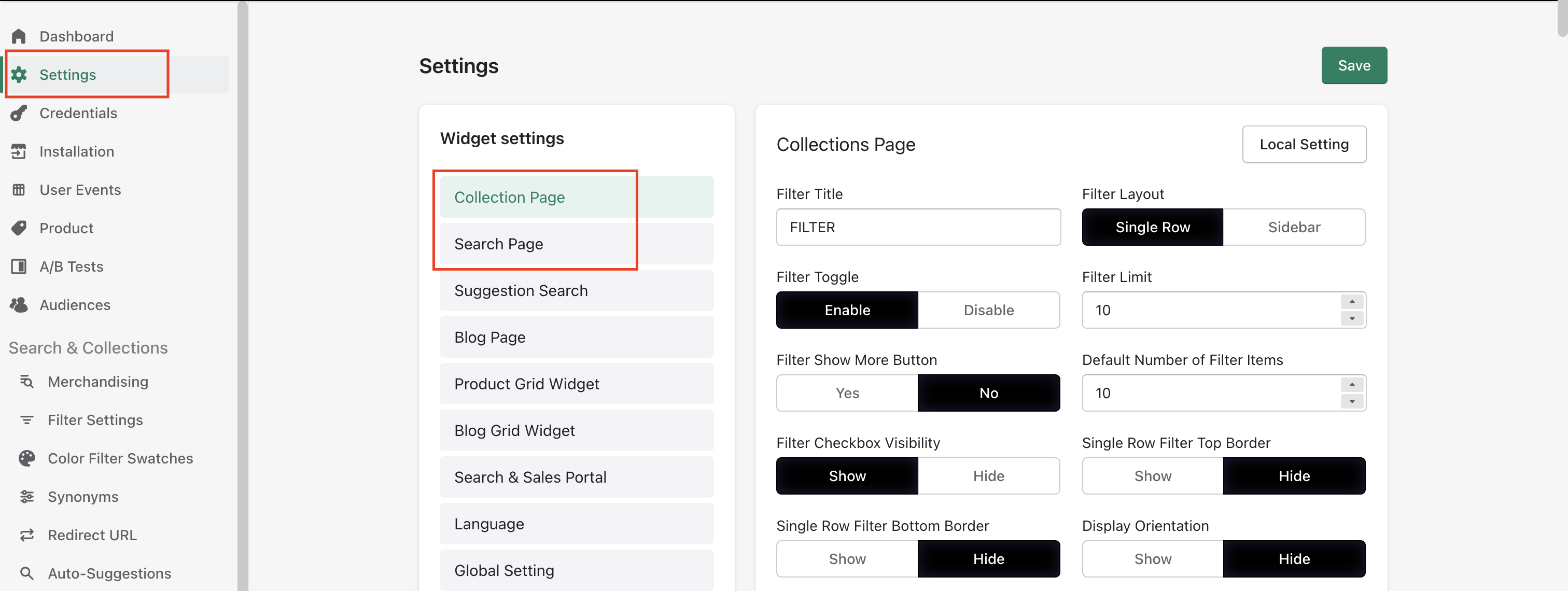 Important: Once you save these settings, they will be applied live across all themes.
If you would like to test or apply theme-specific settings, you can update the configuration and then click the Local Settings button. This will generate a code snippet containing all the required UI settings.
You can add this snippet to the
Important: Once you save these settings, they will be applied live across all themes.
If you would like to test or apply theme-specific settings, you can update the configuration and then click the Local Settings button. This will generate a code snippet containing all the required UI settings.
You can add this snippet to the theme.liquid file of the selected theme.These changes will apply only to that specific theme and will not affect other themes. We have added a quick video below for your reference.
Filter UI Settings
Filter-related configurations are managed from the Filter Settings section under Search & Collections. These options allow you to control:- Filter display style — list view, boxes, or swatches
- Swatch design — round, square, or text with swatch
- Whether filter options are expanded or collapsed by default
- Adding tooltips to filter options for additional guidance
Important: Once you save these settings, they will be applied live across all themes.
To make theme specific changes you can add the following to the theme.liquid file. This will used to update the filter settings on a theme specific level.
The
window.frenzyFilterOrder variable is used to control the filter order and UI behavior. You can retrieve this configuration from the filter_order object in the Frenzy AI Collection Page or Search Page API response. Feel free to reach out Frenzy AI support for any questions.